Licensing
If you use the self-hosted version of Tolgee and want to use the advanced features, you need a licensed plan. Licensed self-hosted plans are tailored to your needs and require contacting us first. For more details, see the self-hosting pricing page.
Getting a licensed plan
Contact us to discuss your needs. We will set up a custom plan for you in Tolgee Cloud. Once the plan is ready, you can subscribe to it and get your license key.
Cloud subscriptions and self-hosted licenses are separate. A cloud plan does not apply to your self-hosted instance.
Subscribing to a plan
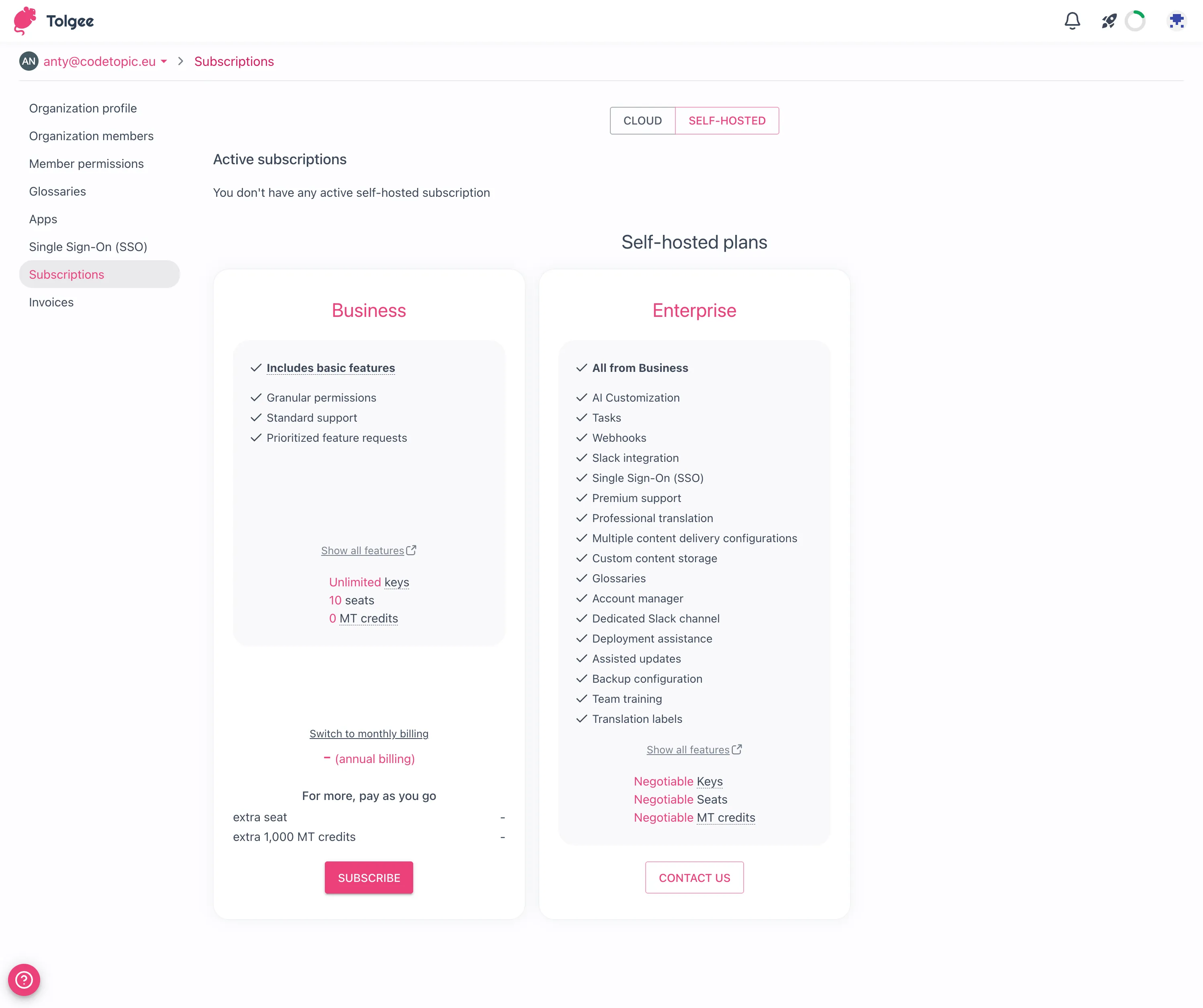
Once we have set up a custom plan for you, open Tolgee Cloud and go to the Subscription page of your organization.
Then choose the plan you want to subscribe to. You can switch to the monthly or yearly billing cycle (there is a discount for yearly billing). Please note that the usage is billed monthly.
After that, click on the "Subscribe" button.
You will be redirected to the payment gateway. Fill in the form and pay for the subscription.
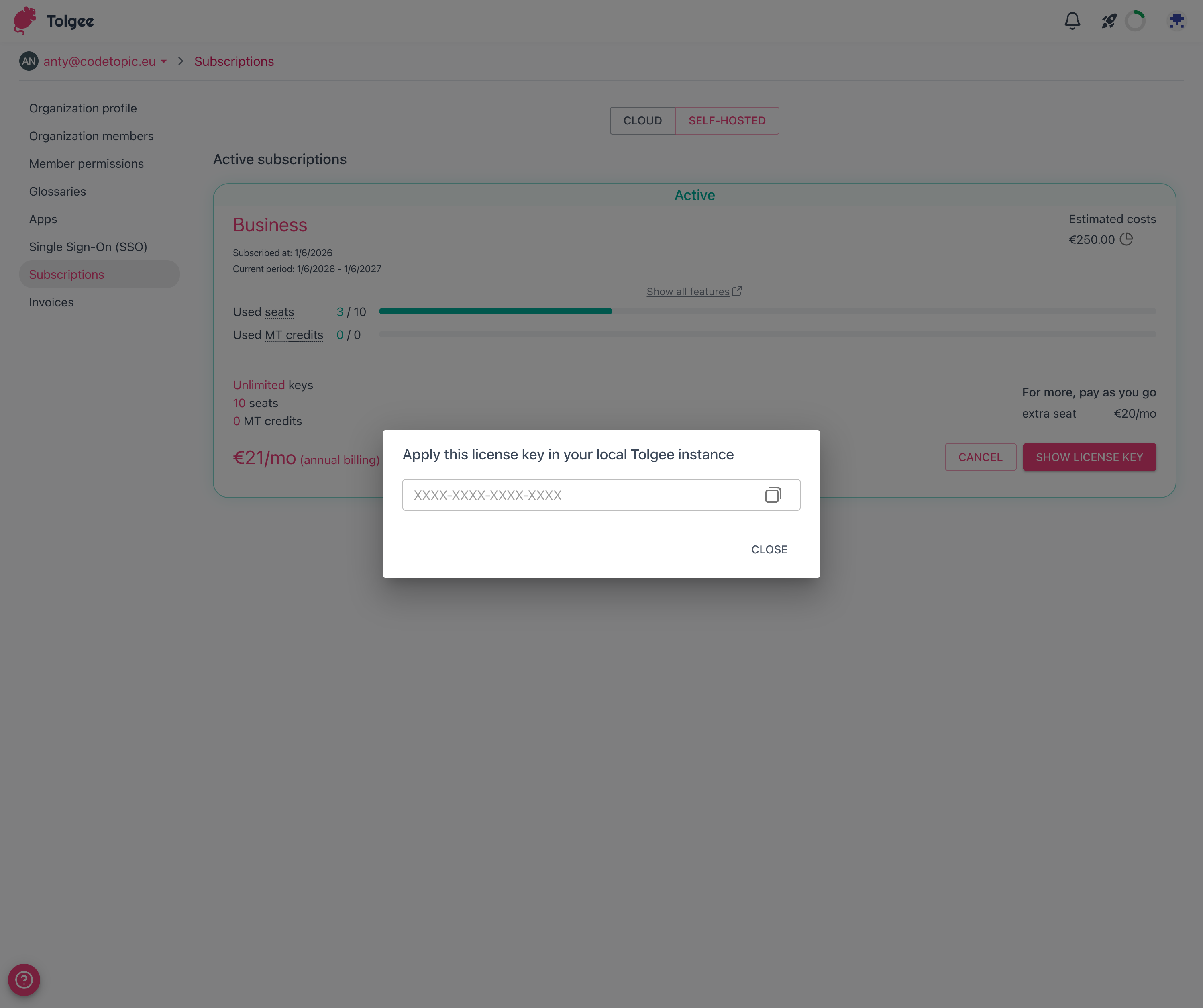
After the payment is processed, you will be redirected to the Tolgee platform, and the license key will be displayed. You need to copy the license key, as you will need it in the next step.
Applying the license key
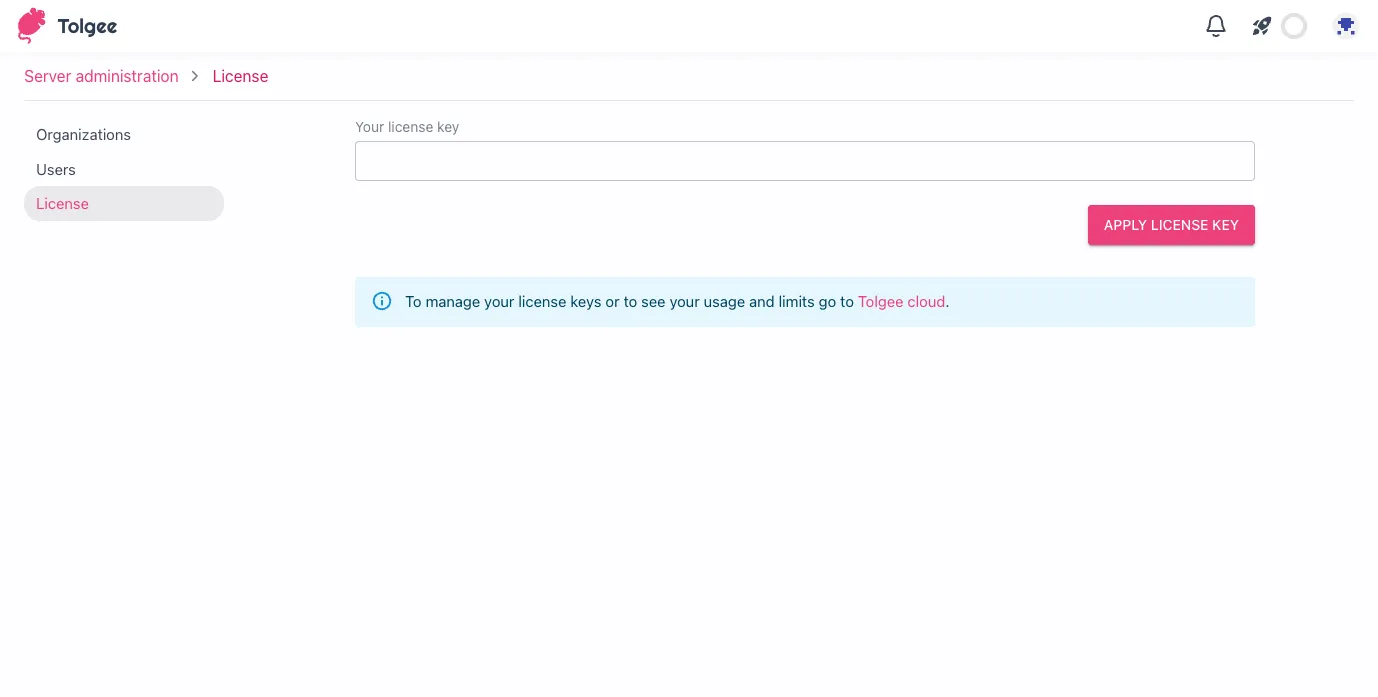
Open the Server administration on your self-hosted instance.
Once you navigate to the "License" tab, paste the license key into the input field and click the "Apply license key" button.
You will be prompted to confirm the license key application. Then, click on the "Confirm" button.
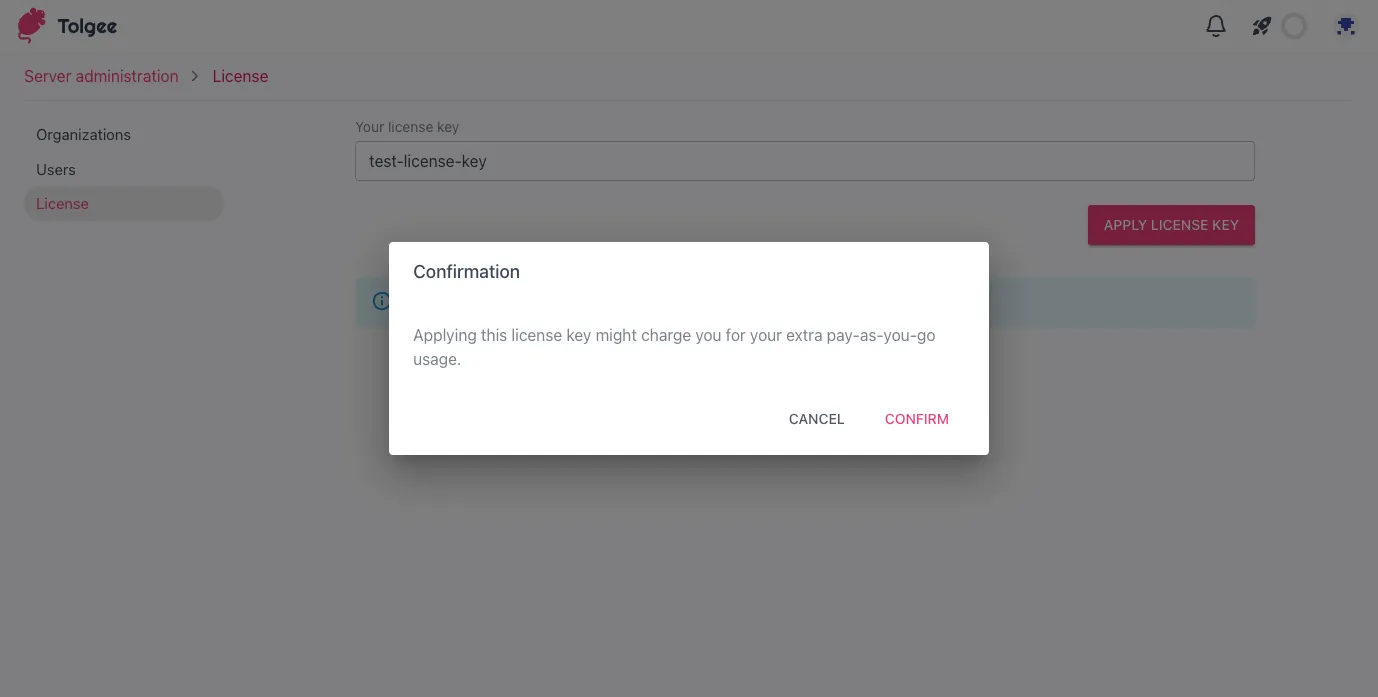
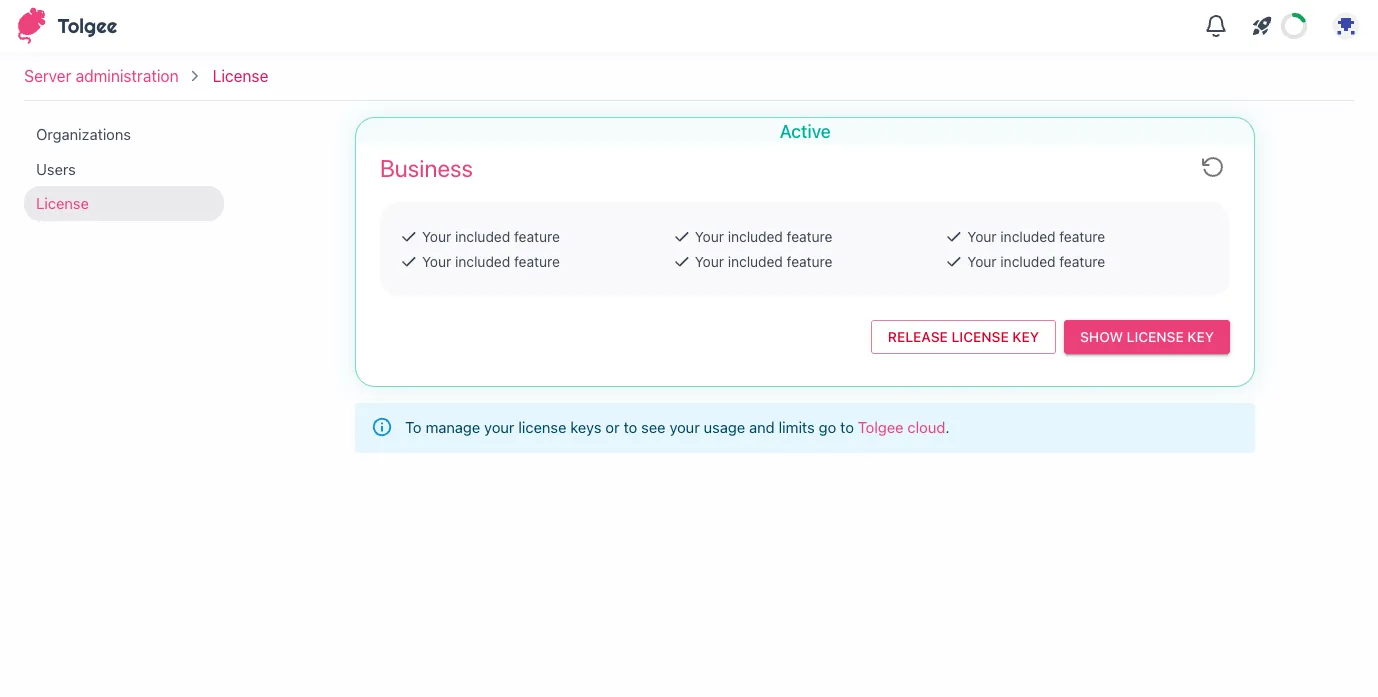
After that, the license key will be applied, and the plan will be activated. You can now use the advanced features of Tolgee!
Cancelling a plan
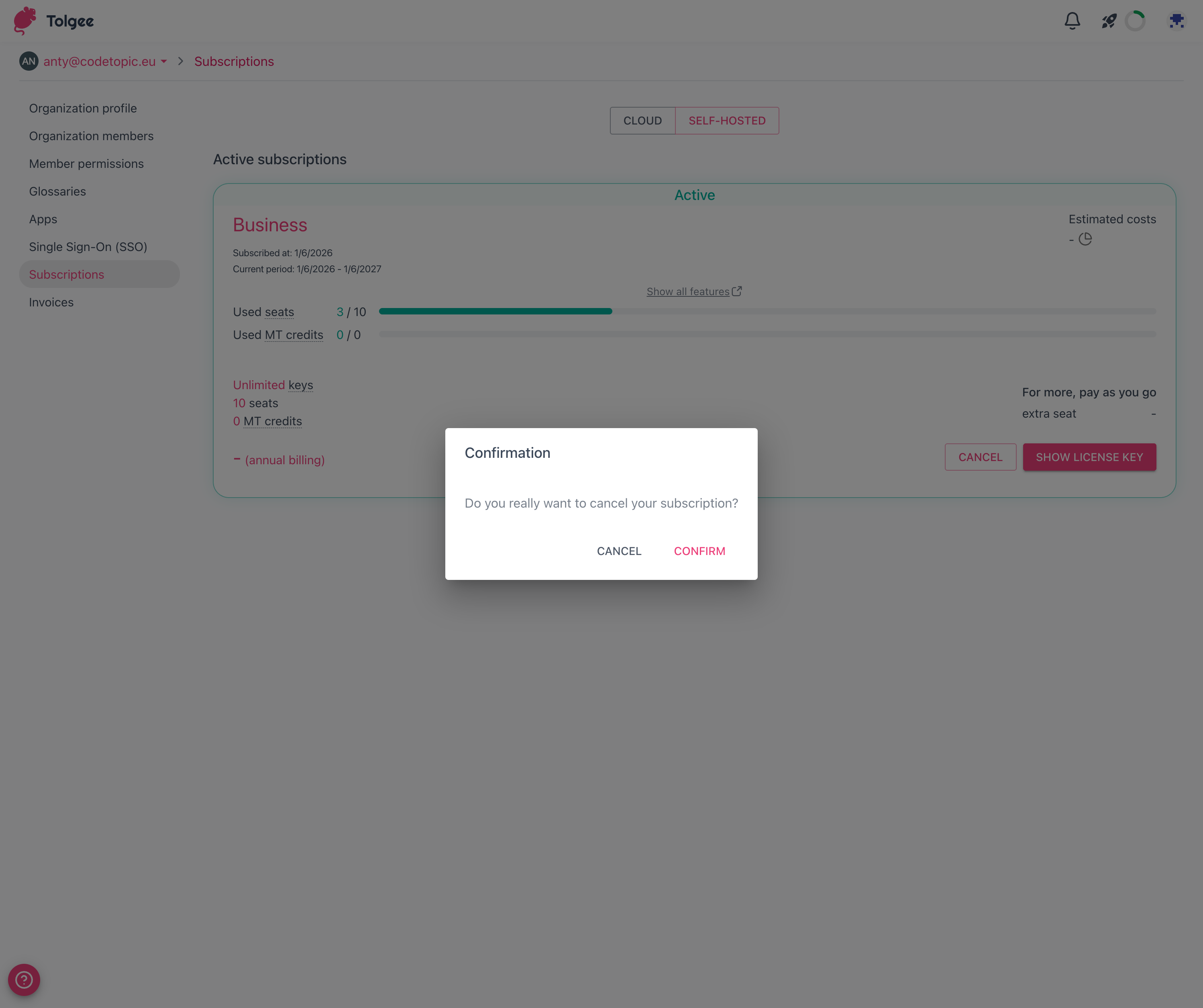
If you want to cancel your paid plan, you can do so on the Tolgee platform. Go to the Subscription page of your organization and click on the "Cancel" button on the plan you want to cancel.
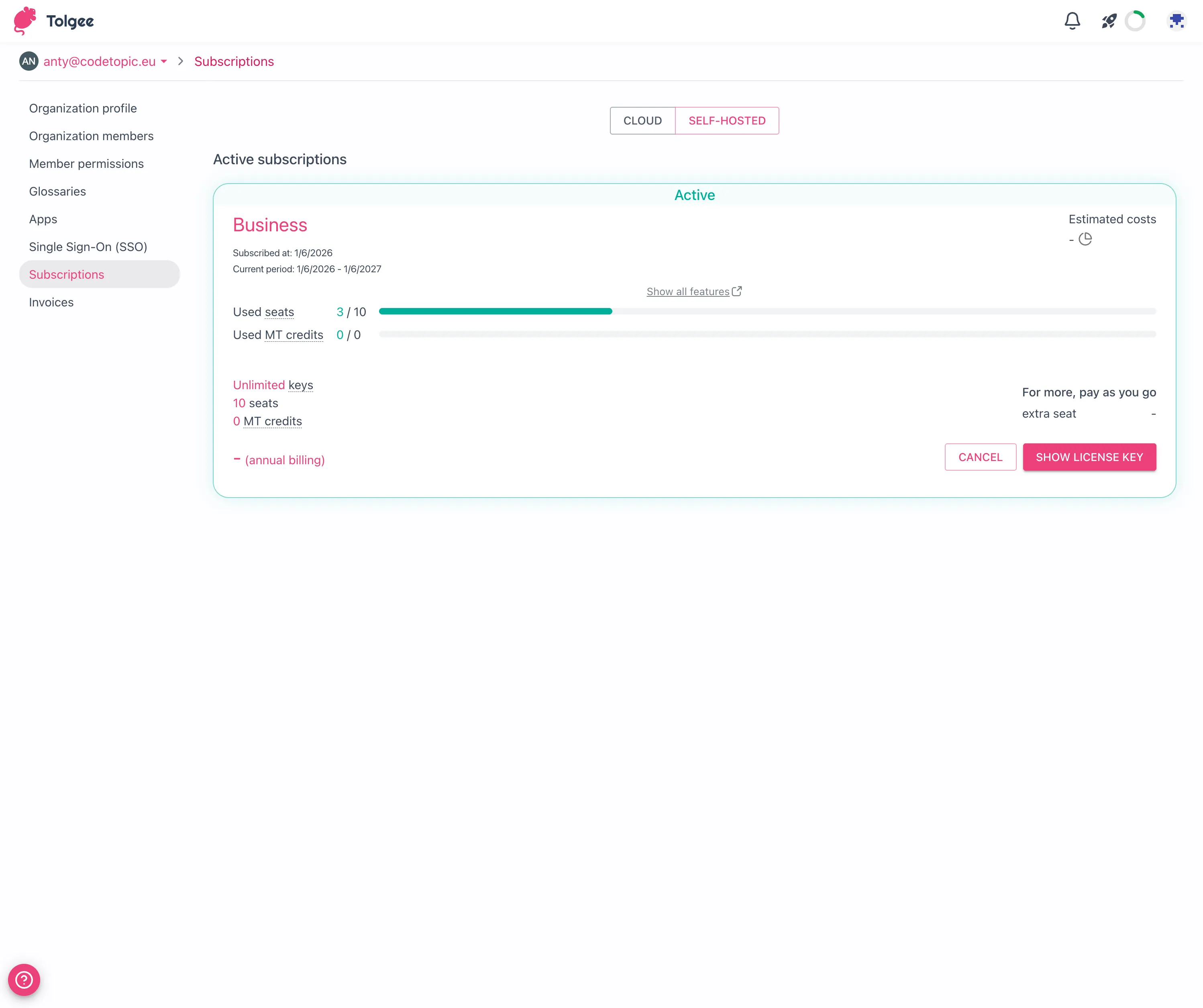
You will be prompted to confirm the cancellation. Next, click on the "Confirm" button. After that, the plan will be canceled, and the change will be applied to your self-hosted instance.